
Android Apps for Bloom’s Remembering Level
By Kathy Schrock // July 5, 2013

INTRODUCTION
If you were an education major in college, you are probably very familiar with Bloom's Taxonomy. In the image below, on the left, is the original Bloom’s Taxonomy, developed in the late 1950’s by Benjamin Bloom. On the right, is the Revised Blooms Taxonomy, published in 2000 by Anderson, a student of Bloom’s, and Krathwhol. The names of the levels were turned into action verbs since Anderson and Krathwhol felt that action verbs implied engagement and re-arranged a bit.
I want to point out is there is still a ton of instructional materials on the Web mapped to the original taxonomy and I encourage you to search for those "older" terms, also, for some good ideas.
The image below includes both the original and revised taxonomies as well as the mapping of the levels to make it more clear when identifying resources to support them.
However, when I think about Bloom's Taxonomy, I do not think of it as a triangle. The triangle image seems to indicate learners start at the bottom and move upwards. I feel that we use each level of the cognitive processes over and over as we begin to acquire new knowledge on a topic. My view of Bloom's Revised Taxonomy looks like the vresion below, The Cogs of the Cognitive Processes, with all of the levels inter-related and dependent on one another.
Image copyright 2011. Kathy Schrock. All rights reserved.
REMEMBERING LEVEL
The first cognitive level of Bloom's Revised Taxonomy is the remembering level. The remembering level involves finding information, storing it somehow and then recalling it. Activities involving this skill level involve...

Diane Darrow, in an Edutopia article, outlines the questions you need to ask when looking for and identifying apps to use to support this level of Bloom's.

ANDROID APPS AND WEB SITES FOR THE REMEMBERING LEVEL
Information searching: Diigo Power Note
https://play.google.com/store/apps/details?id=com.diigo.android
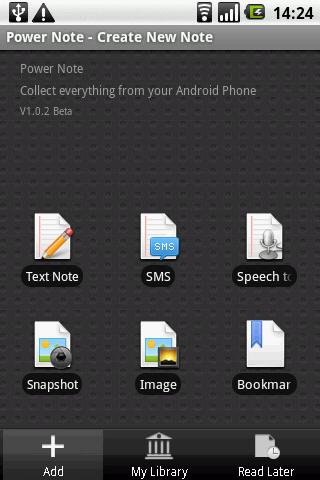
Diigo is an online bookmarking tool that allows students to gather information, tag it, and annotate it. With the Diigo Power Note app, they can add text notes, bookmarks, cached pages, pictures, text messages to their Diigo library as well as access information already in the library.
Retrieve information: Evernote
https://play.google.com/store/apps/details?id=com.evernote
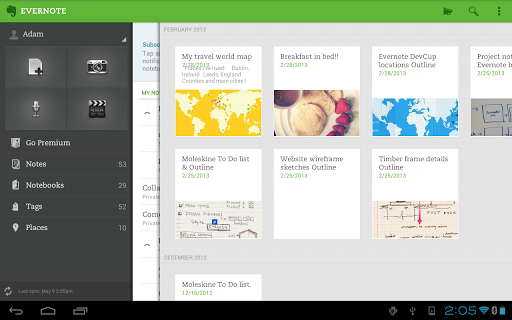
Evernote is a must-have app that allows students to gather assets dealing with a topic. It runs on all devices and operating systems and allows the user to take notes, capture photos, create to-do lists, record voice reminders and search of all these. It is an organizational tool each student should have!
Recall facts and ideas: Pocket
https://play.google.com/store/apps/details?id=com.ideashower.readitlater.pro
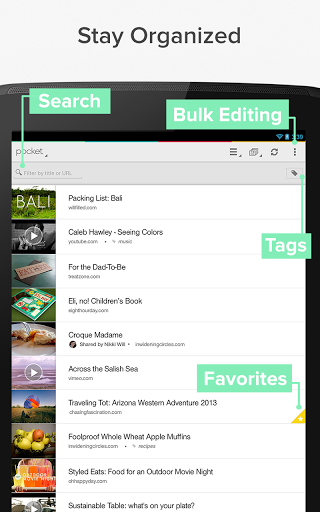
One tool that I have started using is Pocket, which downloads the items you add to it. This is a great way for students to have a hard copy of what they have found. They can view the collection visually or in a list. They can also easily get back to the original site.
Mapping: Simple Mind Free
https://play.google.com/store/apps/details?id=com.modelmakertools.simplemindfree
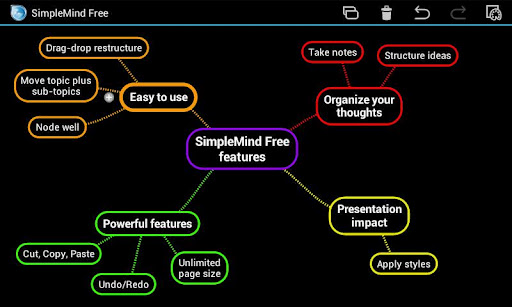
Remembering terms, ideas and facts can be accomplished with a concept map. Simple Mind Free lets students easily create a mind map, concept map, or flow chart. Students can use Simple Mind Free for all types of things, such as brainstorming new ideas, illustrating concepts, making lists and outlines, planning presentations, creating organizational charts, and more! There is even a desktop version available for Mac and Windows.
Labeling a diagram: Skitch
https://play.google.com/store/apps/details?id=com.evernote.skitch
One way for students to remember is to label a diagram or image or illustrate a concept.
Skitch lets students--
- Annotate: Add arrows, shapes and text to existing images
- Create: Draw something new
- Edit: Reposition, recolor and remove annotations at will
- Share: Send sketches and annotations to Twitter, email or Evernote
Timelining: TimelineJS
http://timeline.verite.co/
Timelining is another activity based at the remembering level. TimelineJS is not an app but a Web site. It works best through the Dolphin Browser as I found out by using Sony's Xperia Tablet Z. A student visits the TimelineJS site, downloads a Google Spreadsheet template to his/her Google Drive, edits the sample content with timeline information, and publishes it. The student then goes back to the site, enters the published URL of the Spreadsheet, and receives the embed code that can be put into a Google Site, a Weebly page, or blog. This timeline can include video, too!
FOLLOW-UP
Do you have suggestions for Android apps or Web 2.0 tools to use at this level of Bloom's? Please add them in the comment area!
And watch for part two of this series, Android Apps and Ideas for Assessing at Bloom's Understanding Level, next month!
Date of posting: July 5, 2013
Sony's Education Ambassadors volunteer their time and knowledge to Sony in the pursuit of helping educators adapt to new technology in the classroom. Each SEA member was provided a Sony Xperia™ Tablet to evaluate, to help them better understand the device’s features.
comments powered by Disqus
Related Entries


-
“@mrlosik: The Road to Redefinition: Teaching with iPads and Android mobile devices adventuresinpd.edublogs.org/2013/07/22/the… #sonyedu” thought provoking post Christopher Hull
22 Jul -
 The Road to Redefinition: Teaching with iPads and Android mobile devices adventuresinpd.edublogs.org/2013/07/22/the… #sonyedu Andy Losik
22 Jul -
Thinking about getting a @Sony NEX-6 to replace my Nikon DSLR. Anyone got one? Like it? @lesliefisher #sonyedu #sonypro #edtech Jonathan Wylie
20 Jul